Tag Archives: productivity

ultrathinkeyboardcover

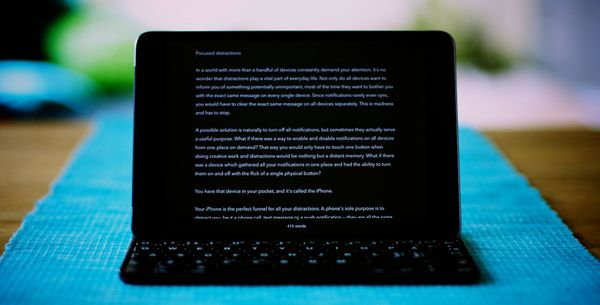
The Logitech Ultrathin Keyboard Cover for iPad

The iPad is great for so many things, yet many people believe its primary usage is media consumption, in contrast to creating content. A bare iPad does not have the exact precision of a pencil, nor the same touch typing experience of a regular keyboard, making those points undeniably valid.

There are however things you can do to augment your iPad, and achieve a reasonable precision when drawing, and to get that special touch type experience you only get from a physical keyboard.

Impressions

I recently purchased a Logitech Ultrathin Keyboard Cover for my iPad 3. Its backside resembles the brushed aluminum back of the iPad, which makes them go perfectly together. The keyboard side is made from high-gloss plastic with matte keys, and the groove where the iPad rests feels solid and will not break easily.

The keys feel firm and has a good resistance to them when pressed, and can be compared to the keys on a Macbook Pro. The keys are only marginally smaller, with the exception of the Nordic layout which have the special characters å, ä and ö pushed together next to the enter key. After a few minutes of typing though, you will get used to them and it will not bother you.

The Smart Cover magnets

The iPad has magnets to hold the Smart Cover in place. The Logitech Keyboard Cover uses these magnets to latch on to the iPad, preventing it falling off when the keyboard covers the screen.

When the iPad is docked in the keyboard groove, the magnets will latch on to the bottom, which is a great reassurance if dropping the iPad is a big concern. You can even pick up the iPad, and the keyboard cover will still hang on firmly.

It does only work in landscape mode though, since there are no opposing magnets on the portrait side of the iPad. It does work fairly well in that mode as well though, as long as the keyboard is resting on a flat surface.

Vim and escape

One of the main reasons for using the keyboard cover is to access remote servers using SSH in addition to typing articles and documents. I mostly use a combination of Diet Coda and Screen to attain some level of productivity.

The main problem however, occurs when using vim to edit files. It extensively uses the escape key, which poses a great problem since the escape key is conveniently mapped to the home button. This means that every time the escape key is pressed, the application closes and one is taken back to the home screen.

The only solution I found is to double-press the escape key, making the multitasking bar appear on the iPad, and then tap it again to get back to the application. Other than that particular gripe, things have been working very well.

Battery life

I was very skeptical when reading the specs indicating six months of usage from a single charge. This was supposed to be possible because of the magnets, which automatically powers the keyboard on and off when it is attached to the screen.

I was wrong.

I have not charged it since the unboxing, and it is still going as strong as ever. Even with it being powered on for entire days at a time. It charges using a micro-USB connector, which is right next to the power and sync buttons.

Conclusion

Having used the keyboard cover for about a month, I have found both good things and bad. I do not regret getting the keyboard and will continue to use it daily.

One issue with the keyboard cover is that it basically doubles the thickness of the iPad, making the iPad feel a bit bulky when you are carrying it around.

The main problem however, occurs when you want to use the iPad for reading, browsing or some other activity not using the keyboard. Where do one put the cover? The original Smart Cover would just fold around, but the keyboard has to be placed somewhere.

On a more positive note, writing has been a breeze and everything from instant messaging and using ssh to connect to remote servers, to writing articles and just browsing the web has become a lot faster and easier. It almost feels like typing on a real Macbook, with the exception of not having a trackpad.

iPad Mini

Looking forward, I am not sure what to do once I get the iPad Mini (the cellular version has just been released in Sweden and is out of stock). On one hand, the iPad together with the keyboard cover makes for a great workstation when on the go, but on the other hand, the iPad Mini is just too perfect to pass up. Would a similar keyboard cover for the iPad Mini work, or would the keys be too small?

Thoughts on OmniFocus

There are plenty of applications out there claiming to end the chaos and make sense of everything. One of the schools is GTD, which focuses on next-actions and context. This makes a lot of sense in my opinion, and I have been trying to incorporate the practices into my daily life. One of the strongest questions you can ask yourself at the end of a meeting for instance, is

What is the next action to move this project forward?

Such as simple question, but the answer may not always be readily available after a meeting if you have been focusing on the wrong things. A project is by definition done when there are no next-actions, so why do we have such trouble defining and following a set course?

Another thing that has made it into my mindset is the notion of inboxes. I will not get into details on the different steps of the GTD process, but step one is “capture”. This means that any new idea or action is thrown into an inbox, until such time comes as to review this inbox and process each item in the list. In GTD, the outcomes for an action in the inbox is “do”, “defer” or “delegate”, which probably reminds many people of the Inbox Zero principle of Merlin Mann.

I have been a long time user of Things, a task management application for the Mac, iPhone and now also for iPad. While it has been working fine and does most things I need, further development of key features have been terribly slow. I decided to take another look around, and I have since long ago given up on The Hit List, even though it showed much potential. This time I gave OmniFocus a real shot. I even bought the iPhone application just to give it a proper chance.

Contexts and tags

There are some key differences in how both software work. While OmniFocus brings forward contexts, Things uses tags to achieve the same thing. While tags are a lot more flexible, there is a downside too. Contexts in OmniFocus are easy to use in the sense that they are always present and visible, whereas Things uses a bar at the top for tags, which makes it harder to get an overview of contexts. This has also lead me to not use contexts properly, but always work in the project/planning mode, which is not the GTD way.

Since Things is using tags however, other GTD principles, such as time available, energy level and priority are easy to implement. OmniFocus currently does not support all the principles, and there is no way to implement them by yourself.

Separating work and play

One of the best features in OmniFocus is the support for different perspectives. I have for instance a Work and a Personal perspective, which means that when I am working, just clicking on the Work icon in the toolbar hides everything else from view and lets me focus on what I should be doing right now. There is for instance no need to see actions regarding blog articles to write when I am at work.

Things on the other hand, has something similar in areas. You can assign a tag for different areas, which will then be inherited by projects and actions within that particular area. This makes it possible to differentiate personal and work related items in the next view. There is however no way of filtering the visible projects in the sidebar, which means that there is still lots of distraction and you might have to spend energy sifting though actions that are not applicable in your current context.

Making it work like your mind

While Things has a flexible and easy to use tagging feature, OmniFocus lets you organize your projects into folders, and projects can even have sub-projects and you guessed right, actions can even have sub-actions (which would make them sub-projects, but that’s another story).

In Things however, there is only one fixed hierarchy. At the top there are areas of focus, which can contain both projects and single-step actions. Projects contain actions as usual, but there is no way of creating sub-projects or actions.

Cutting out distraction

Another way the two contenders differentiate in philosophy is the way actions are linked. Things currently does not have any type of dependency support, meaning that it will always show you all actions in a project, regardless of whether they are available or not. Say you want to sell something on Ebay, and among other, there are two tasks. One says “Create the auction on ebay.com”, whereas the other one says “Take a picture of the item”. Since you can not create the auction before having the picture, the first task should only appear once you have completed the second action of taking the picture.

Doing this in OmniFocus is quite easy. A project can behave in three different ways:

  • Single-actions
  • Parallell
  • Sequential

This is true even for sub-projects, meaning that the main project itself can be parallel, meaning that all actions within can be done in any order. Sequential projects however, must be done in a particular order. After using OmniFocus for a while, I use parallel projects in most cases, while sub-projects within are usually sequential.

There is of course a downside to all this dependency behavior, and that is when actions are mistakably hidden, because of a project in error has been defined as sequential instead of parallel for instance. In a perfect world, doing the weekly review should help mitigate against these problems, but in the real world, things might fall though the cracks.

In summary

My move to OmniFocus has been a productive one by far, and only seeing relevant information when needing it makes all the difference in the world. OmniFocus may seem too advanced and hard to learn at first, but once you get over that initial threshold and set up your perspectives, you never have to fiddle with the software again – you can just focus on your lists and actions and everything else will be taken care of.

The thing I miss most from Things is the way it handles recurring actions. You set a schedule for the action, and when it becomes available, a copy is created. This means that while the action is still scheduled, you can still affect the copy, for instance by delaying it, setting another due date, without affecting the original scheduled action.

I now use OmniFocus for the iPad as well, and it will be interesting to see whether it can be used in new ways and for new things. I already love the new view for the weekly review, as well as the new forecast view, which is supposed to be included in an upcoming release of OmniFocus for the Mac as well.

Link

Mac Must Have: Hazel

Hazel basically allows you to preform preset actions based on a set of rules that you create.

There are some really interesting ways to use Hazel, and the first things I will try is the automatic deletion of application support files.